Layout Buffet is a series about the many things your keyboard can do. Each post explains an Oryx feature or layout idea and how you can try it a little at a time. Just like a buffet, how much you grab is up to you. If you try a bite and love it, you can come back for more. If it’s not for you, there are other options. Sample, experiment, and figure out what you like and what you don’t.
Every Layout Buffet post is typed using the concept covered in that post, so you know it’s not just theory.
Let’s dig in!
The “pitch” of Unicode is exciting: a way to enter any character you can think of with a sequence of numbers. If you start to run into the rough edges of multi-language keyboard support, Unicode sounds like it can solve all your problems. And with macros in Oryx, it can be automated to single keys, a lot like using firmware and software shortcuts. So why isn’t Unicode all over the place?
Well, the reality of Unicode is much trickier than it sounds. In a rare change of pace for Layout Buffet topics, Unicode is something you can do with your layout, but not something I recommend. I’ll dive into why that is, and look at the narrow situations where Unicode does make sense.
What is Unicode?
To be fair, Unicode is actually a lot more than just a way to input characters. There is important work done by the Unicode Consortium around the idea of digital text compatibility across languages. This is a big reason I can paste Chinese text into an English word document and still see the Chinese characters rather than empty boxes or garbage symbols. The mission behind Unicode is great.
What this means practically and what most people are referring to when saying “Unicode” is more-or-less any character you can think of (accented letters, math symbols, logograms, emojis, anything) gets its own numbered sequence. Software understands these numbered sequences and displays characters from multiple sources correctly (depending on the specific software).
Who should use Unicode entry?
I’m going to distinguish between Unicode, which is very important, and Unicode entry, which is the way to enter characters using Unicode numeric sequences. Unicode gets trickier if you, the user, want to enter these numbered sequences and get a character back. It can’t just be entering numbers on their own because obviously we need to be able to type numbers, too. There needs to be a way to tell the computer that you’re about the enter Unicode.
The problem is there is no standard way to do this across different operating systems.
The other “problem”, which is more of a consequence of Unicode being a catalog of characters and not a true input method, is that conventions we’re familiar with, like Shift, do not apply. Holding Shift while entering U+00E0 (the Unicode sequence for à) does not give you À. To get À, you would need to enter U+00C0.
So with these things in mind, there are two major criteria to meet before Unicode entry make sense. If both of these things are true, then I think Unicode entry is a great option for you:
- You only use one operating system (or would only use Unicode on one OS).
- You are not using Unicode for languages (or if you are, it is very, very occasional). If you need to regularly enter text in another language, the simplest and best solution is to simply install that language as an additional input locale.
This immediately disqualifies almost everyone I’ve talked to who is interested in Unicode. I think Unicode entry is a bit of a trap. It sounds amazing on paper, but using it is actually quite annoying for many of the things it sounds like it would be great for.
That’s not to say Unicode entry doesn’t work. The implementation is just clunky. I’ll show you why.
Using macros to enter Unicode
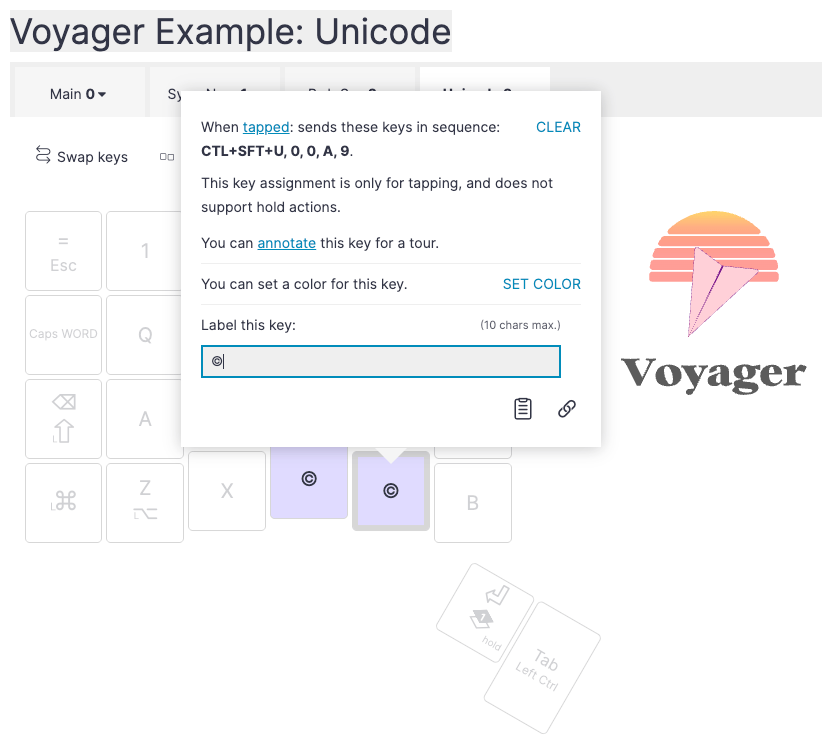
If you do want to use Unicode, Oryx helps make it a little easier with macros. Here’s a macro for © using Linux, for example:
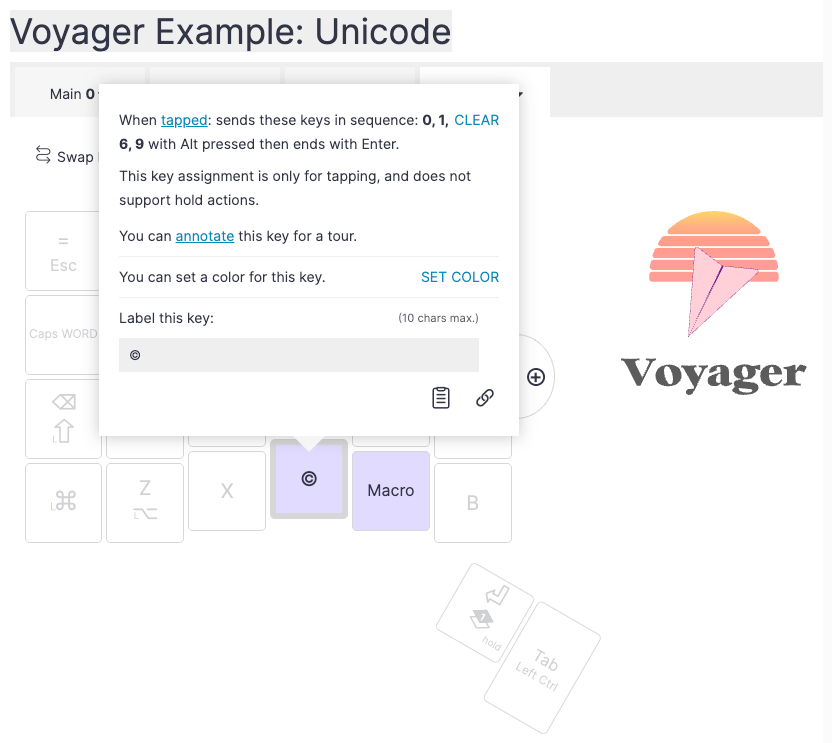
When manually entering Unicode sequences in Windows, you have to hold Alt pressed throughout. Oryx can do that for you.
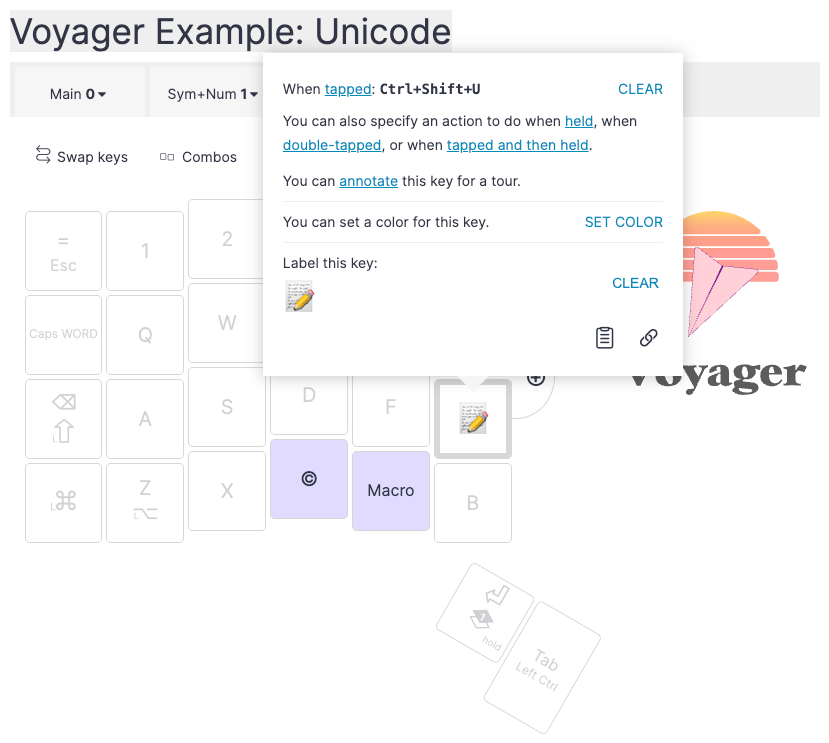
If you’re on Linux using a compose key or a shortcut to enter Unicode, you can have one key that triggers this shortcut, then some other keys of just the Unicode sequences:
And if you’re wondering why all these macro setups are operating system-specific, that brings us nicely to the first big issue with Unicode entry.
Unicode across operating systems
Windows, macOS, and Linux all have quite different ways to enter Unicode that are not compatible with each other.
Windows
Unicode entry in Windows is commonly called “Alt codes” because you hold Alt while entering the code. The Windows system also uses the decimal base-10 value for characters. This is important to know because you’ll need to use the decimal sequence rather than the hexadecimal (the standard Unicode entry) sequence.
For example, the hexadecimal sequence for À is U+00C0, but the decimal sequence is Alt+0192. Another important note is the numbers you enter must be their numpad variants. Even though visually to us, hitting 9 on the top row of a keyboard and hitting 9 on the numpad creates the same “9”, to the computer, these are different keys. There is also no intuitive way to mentally convert hexadecimal to decimal — you just have to look these up (another tedious part of Unicode entry).
If you’re only doing this occasionally, I’d recommend not using Unicode at all and instead using the Character Map or the Emoji/Symbol Panel.
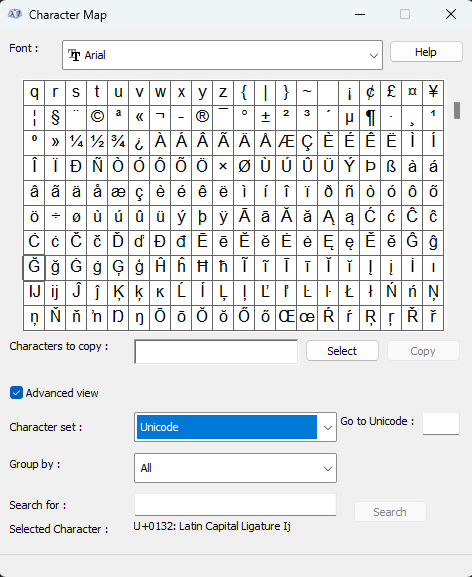
These will let you search for characters and insert what you need. The Character Map is a little more retro and displays everything in your font.
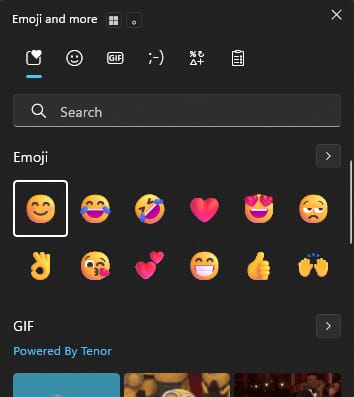
The Symbol Panel is more emoji-oriented. The Character Map doesn’t have a hotkey by default, but if you hit the Windows key and search for “character map” it will come up. The Symbol Panel can be brought up with Win + . by default.
macOS
On macOS, Unicode entry is done with a specific keyboard layout you choose in the operating system settings called Unicode Hex Input. It is basically the same as a standard English US layout, except that while you hold Right Alt/Option specifically (not left), you can enter the hexadecimal sequences of characters.
Here’s a good place to highlight just how frustratingly close cross-OS support for Unicode is. It is almost possible to use the same macro across Windows and macOS, but since Windows uses decimal and macOS uses hexadecimal, they are completely incompatible. If you want to use Unicode for the same character across operating systems, you’ll need OS-specific macros.
If you’re only doing this occasionally, just like Windows, use the Character Viewer.
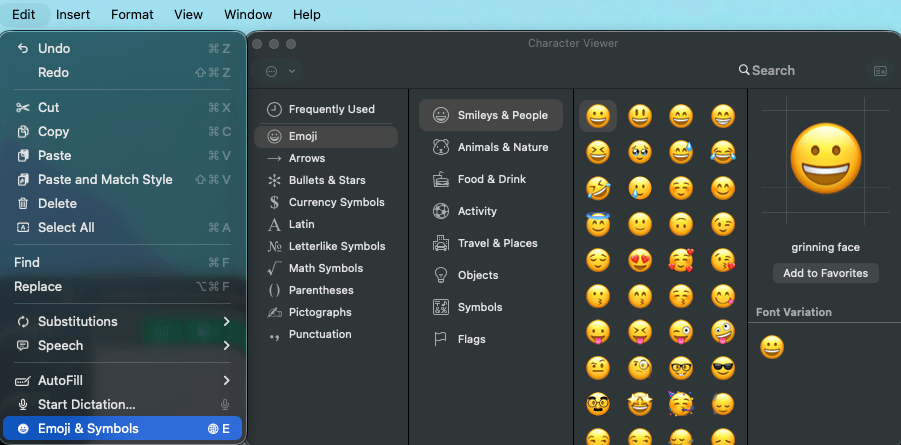
It looks quite a bit like the Windows version, and works exactly the same way. By default, the hotkeys to call this up are either Ctrl + Cmd + Space or Globe + E, but you can remap the later by reassigning the menu shortcut.
Linux
Linux’s way of handling Unicode is by far my favorite because it is extremely customizable. It’s the only OS that feels like it really wants you to manually enter Unicode characters every now and then. The three main ways to do this are hitting Ctrl + Shift + U, Ctrl + Shift + E, or a Compose Key that you can configure in your settings. Whether these work or the exact shortcuts may depend on your input framework settings, but if you want to use one of these methods and it doesn’t work, it’s easy to add. Hitting Ctrl + Shift + U or your Compose Key lets you type the hexadecimal sequence of the character you want, and hitting Ctrl + Shift + E lets you use hexadecimal or search for a character by its name. It’s mostly for emojis, but it supports other Unicode characters, too.
Unicode for languages
The most common question I see around Unicode is how to set it up to access accented characters from another language while staying in an English keyboard layout. Even if you only need this on one operating system, Unicode entry is still not a great solution because of the issue where the capital version of characters are not related to their lowercase versions. You would need independent macros for the lowercase and uppercase version of accented letters because they require different sequences.
Is that impossible? No, it can be done — but is it worth it? You’ll have to remember double the keys for accented letters, and because these are best done with macros, there will always be a slight delay while the sequence is sent. If you’re regularly using these keys, it gets pretty annoying to regularly have to wait a little in the middle of typing.
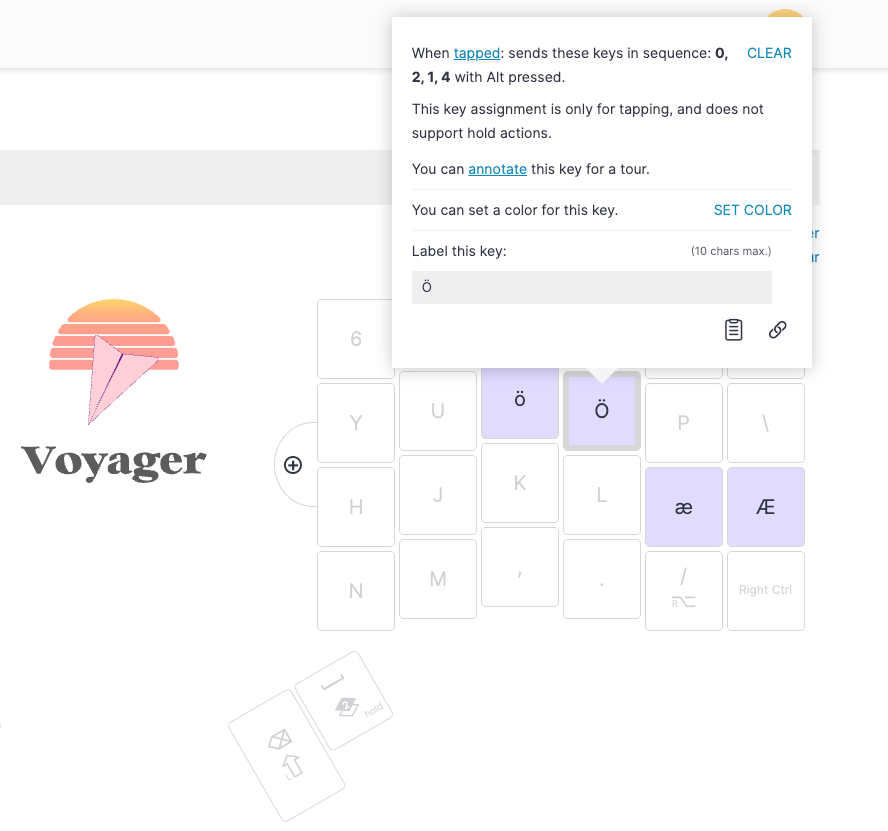
The better option is setting up a custom software layout, or using an already-made one like EurKEY, or the Unicode alternative below.
What is Unicode entry actually good for?
Mathematicians! Logicians! Really. If you are regularly making worksheets that use unique math or logic symbols (integrals, unions, ratios, etc.) Unicode entry can be quite helpful. That said, if you’re using these symbols a lot, you’re probably using a nice LaTeX editor (or should be).
To me, the ideal use case of Unicode entry is for people who dabble in something. If you write in a different language very occasionally, or occasionally use specialized math symbols, setting up some Unicode keys can make sense. If you’re doing either of these things regularly, there are better options. Unicode entry is kind of a “hobbyist” symbol entry system, which may be the most niche descriptor I’ve ever thought of.
It’s not that I don’t like Unicode entry, but the applications of it that actually, meaningfully make your life easier are so, so narrow, and it is not trivial to try out. Setting up more than a handful of Unicode keys takes time and testing.
The Unicode entry alternative
If you want something like Unicode entry, but more intuitive and potentially even cross-platform, your time is better used for setting up automatic text replacements. This makes typing “:smile:” transform into 😄, for example. Some software already does this for you, but if you want it to work across all your apps, there are tons of options.
The open-source app Espanso is a good one to take a look at. There are packages for tons of Emojis, Greek letters for logic, math symbols for... math, and much more all to get the characters you need set up quickly. Espanso is also cross-platform, so you can use the same shortcuts for your most-frequently used characters no matter what OS you’re using.
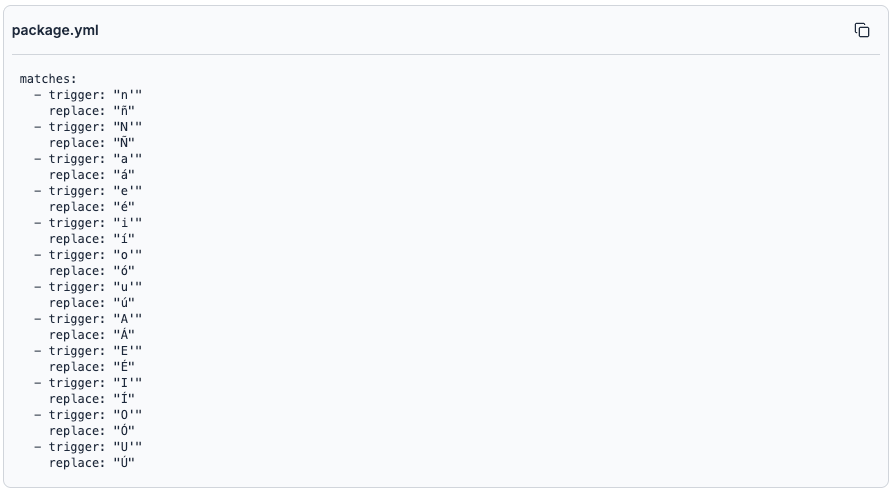
And if you don’t like Espanso, you can do similar things with apps like Keyboard Maestro, Alfred, AutoHotKey, and even your operating system’s built-in autocorrect. It’s quite a common feature. The idea behind Unicode entry is solid, but the implementation with Unicode itself is not ideal.
In the buffet metaphor, Unicode sits on a table by itself in a poorly lit corner. As you pass by it, maybe you wonder if it’s actually edible or just a decoration. You do not want to load your plate up with Unicode.