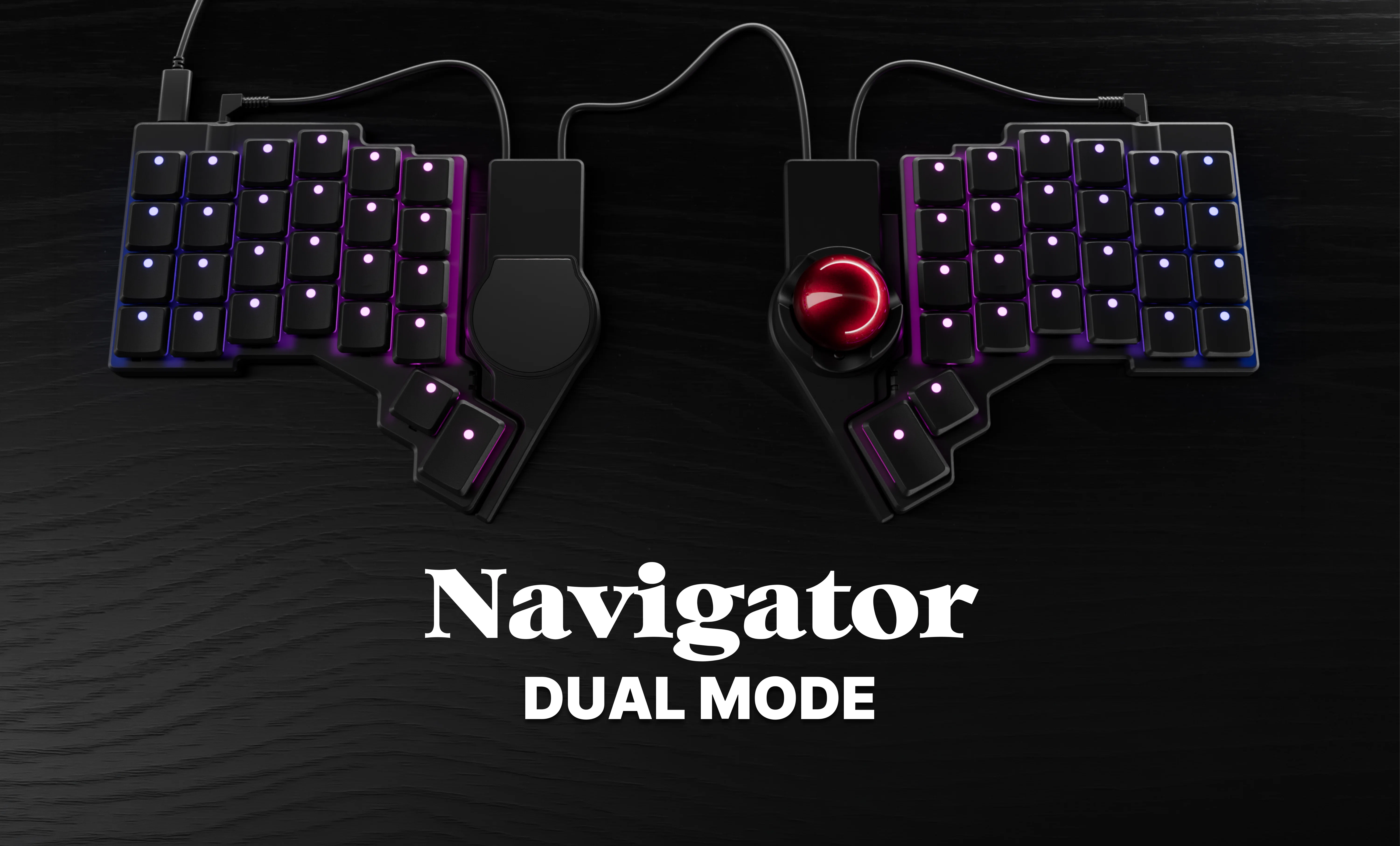
You can now connect two Navigators at once and use both. Just add one to the left side of your keyboard (Voyager or Moonlander) and the other to the right.
They must be different: one trackball and one trackpad.
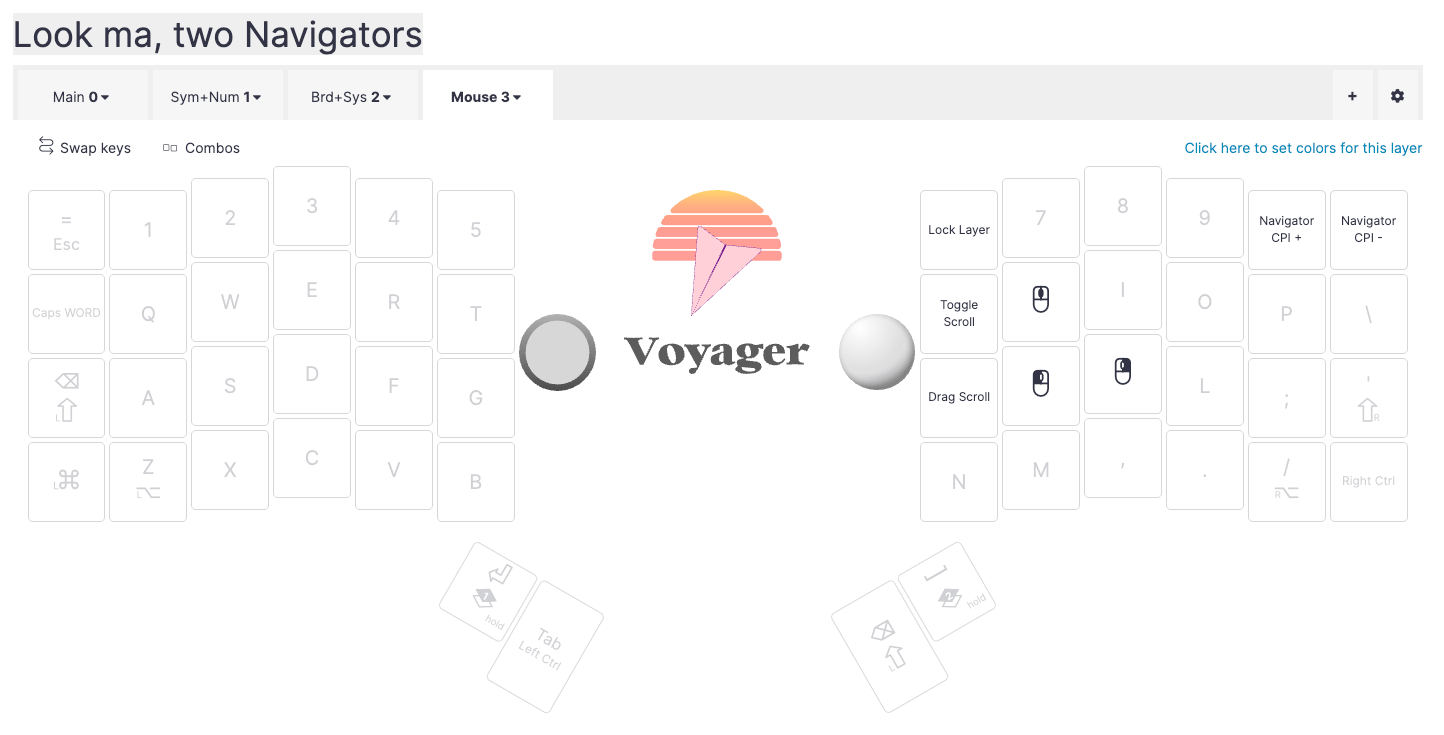
The side doesn't matter. I suggest trying the trackball with your dominant hand but you can do either and see what works for you.
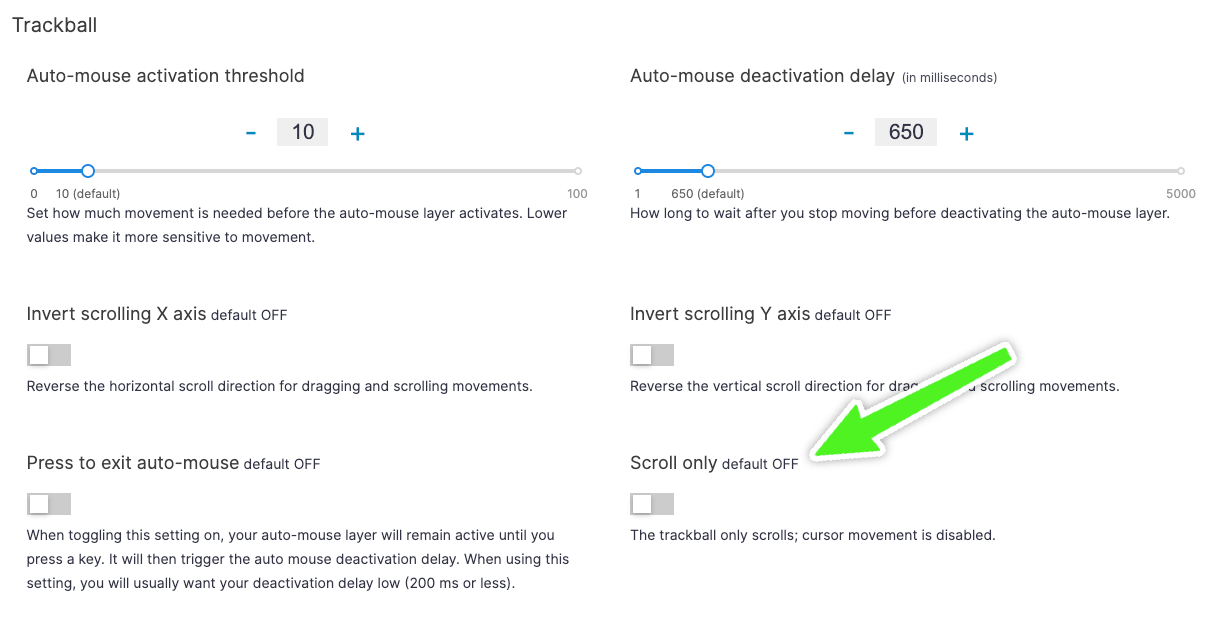
There's also a new setting in Oryx that locks the trackball into scroll mode. The setting is persistent and will always boot your trackball as a "scroll ball". If you prefer switching to this mode on the fly as you're using the keyboard, you can do that too, using a keycode called "toggle scroll". This is nice if you prefer using the trackball just for scrolling and the trackpad for pointing.
If you prefer it the other way (as I do), just use your trackball as usual, and use two-finger swipes on the trackpad to scroll. This works very well, including inertial scrolling.
We also have a feature called "Automouse layer" which switches to a destination layer automatically as soon as you move your Navigator. With this new update, the trackball and the trackpad can each have a separate automouse layer. You can also point both at a single layer, or enable automouse on just one of your Navigators. It's a super flexible system.
If you want two Navigators at once, you're going to need three TRRS cables: two short ones that connect your Navigators to each half of the keyboard, and one long one that connects the Navigators together. We include short and long cables with each Navigator, but the long TRRS cables have one end that's bent at 90 degrees, so it won't work for this dual setup. Fortunately, straight TRRS cables are easy to get pretty much anywhere in the world. Just make sure you're getting TRRS (tip-ring-ring-sleeve) and not TRS (tip-ring-sleeve). We hope to offer these straight cables in the future ourselves.
This took a while to roll out because it was hard. These devices send a lot of traffic over the I2C bus between the keyboard halves, and it took a bit of wizardry to keep things nice and responsive even when you're using LED animations (which add their own traffic load to the same bus). But we got it done, and we tested the heck out of it, and we like it.
Now it's your turn! Get yourself another Navigator, a straight cable, and give it a try. If you already have one Navigator and just want to add the second kind to your setup, email us for $5 off your second Navigator. Also, send us images of your keyboards with both Navigators and tell us what you think!