It has been an exciting few weeks! We’ve been testing and releasing tons of new Navigator fixes and features that have been highly requested. Here’s a breakdown.
Press to exit auto-mouse idle timeout
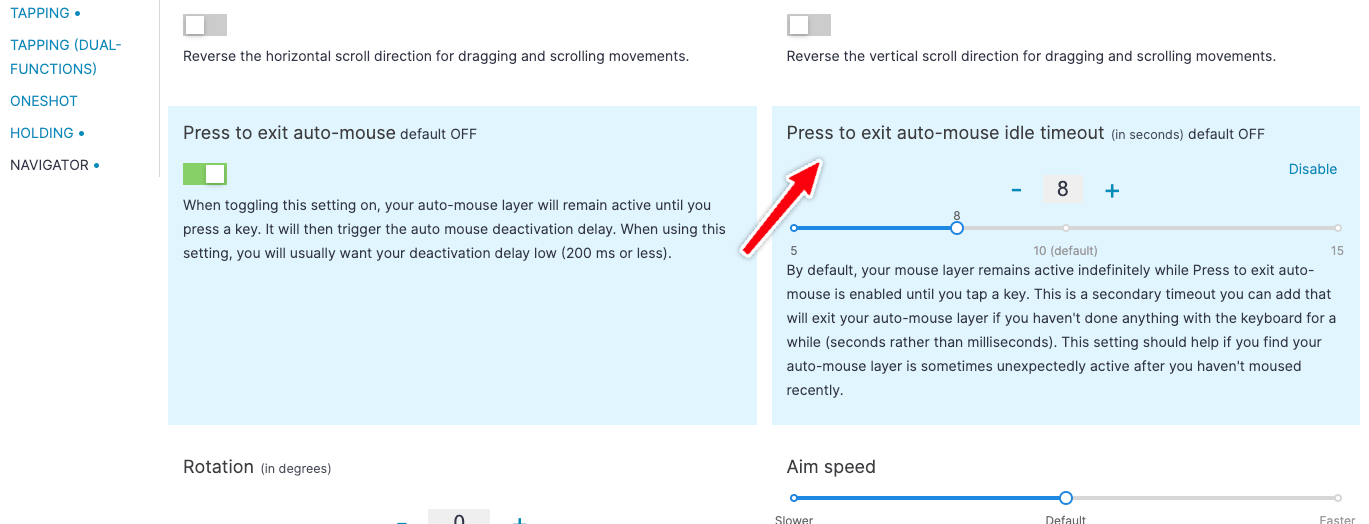
Most of our focus has naturally been on the Trackpad, but we’ve got some news for the Trackball, too. Now, when you enable the Press to exit auto-mouse setting, you have the option of setting an idle timeout.
By default, when Press to exit is enabled, your auto-mouse layer will stay active forever until you hit a key, then the deactivation delay starts. This is nice because you don’t have to worry about pressing a click key fast enough before the mousing layer deactivates. If you set the deactivation delay low (200ms or less), your auto-mouse layer will be responding directly to your input. You move the mouse, it activates. You hit a key, it deactivates. Very straightforward.
Sometimes mousing is not so straightforward, though. Maybe the Trackball gets bumped or you just have to mouse to somewhere else without needing to click, like when you’re kicking the cursor out of the way when watching a video. The idle timeout adds a maximum time the auto-mouse layer will stay on even if you don’t hit a key. It’s measured in seconds rather than milliseconds because this should be high. So once five seconds pass (for example) and you haven’t clicked anything, the keyboard drops out of the mouse layer back to your Layer 0. Basically, it is a safeguard against activating the mouse layer accidentally and not realizing your keys will do something different when you try to type.
Navigator macOS companion app improvements
Hopefully this is obvious if you try the Navigator Trackpad across different operating systems, but just to be clear, we’re focusing on the macOS companion app because these features already work on Windows and Linux. The Navigator Trackpad supports any trackpad gestures a Windows or Linux trackpad supports out of the box, as soon as you flash a Trackpad layout to your board. Apple makes this much more complicated on macOS (more on this below).
For macOS, the current version of the app as of writing this is 1.0.3 (4). Be sure you’re up to date, and it’s not a bad idea to make hitting the Check for Updates button part of your morning ritual for at least the next couple of weeks. We’re pushing out a lot of upgrades regularly.
Tap and hold to drag with re-grip
Now, if you tap (down and up) then quickly hold (just down), you will trigger a drag. If you do this while dragging over some text, you’ll start highlighting. If you do this at the top of a window, you’ll drag the window around. On a file, you’ll start moving the file around. You get the idea.
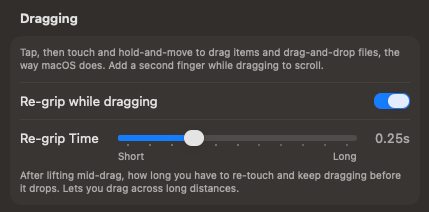
There’s also a setting for “re-grip”. Since the surface of the Navigator Trackpad is small, you wouldn’t be able to drag very far, but re-grip keeps the drag going as you lift your finger and reposition it to continue the drag as long as you’re doing this quickly (you can adjust exactly how long). So you swipe-lift-swipe-lift and can keep going for as long as you need. To end the drag, just tap again or wait for the re-grip timeout to end.
Two-finger swipe gestures
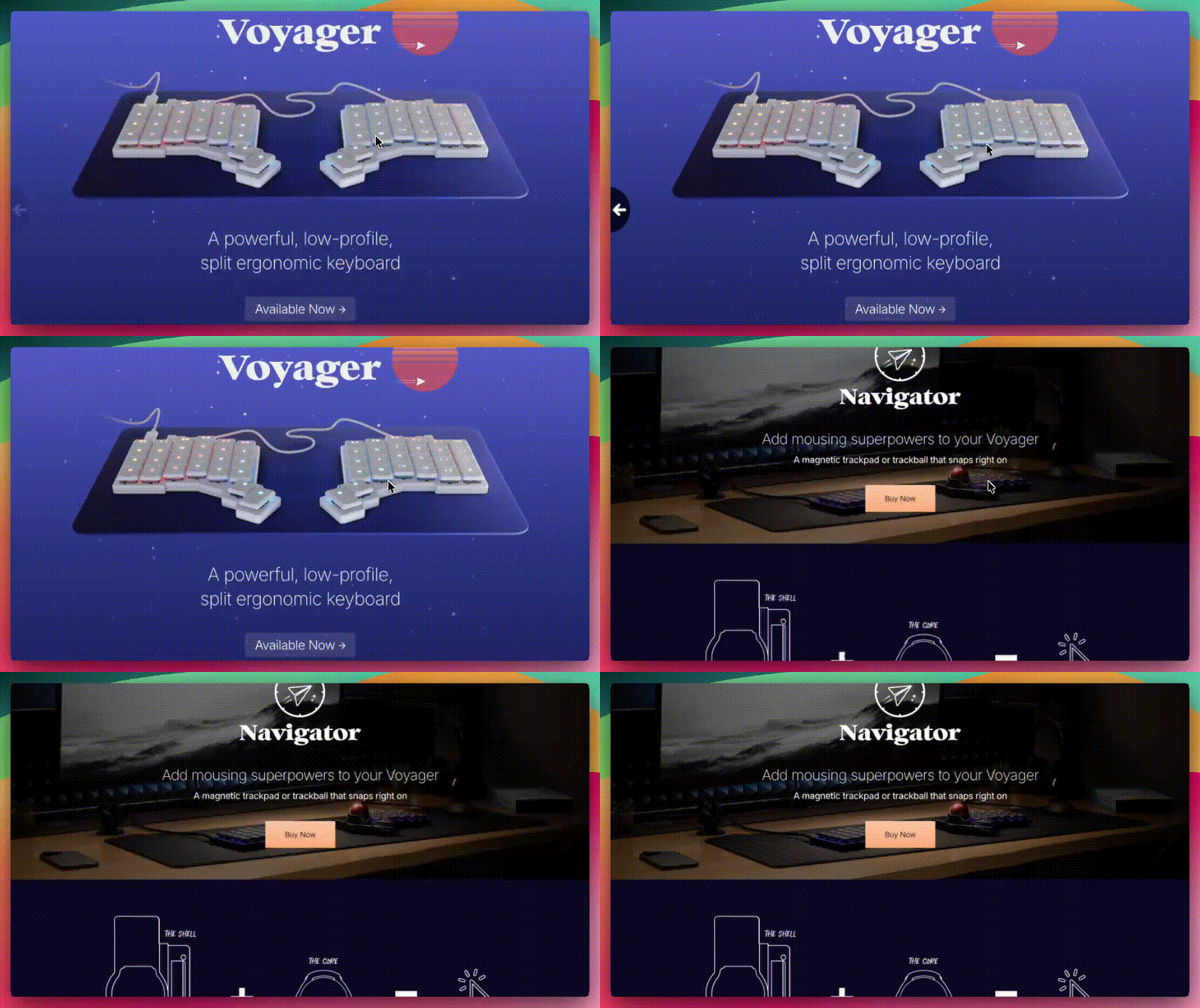
You can also now trigger more two-finger swipe gestures in macOS, but there is an important caveat: not all two-finger swipes feel the same. For example, I can two-finger swipe in my messaging apps that support it to reply. This works well.
If I try to two-finger swipe to navigate back and forward in a web browser, it can work, but it is not perfectly consistent. Except when I use Safari, where it is consistently… not working. Apple being Apple, it seems like there is some extra, invisible hook to this gesture that we just can’t access. So we’ve implemented two-finger swipes to the best of our ability while working around Apple’s restrictions, but they’re not perfect. Frustrating! We’re not giving up, but that’s where it stands for now. Apple, if you’re reading this, let’s open things up a little bit?
Double and triple-tap improvements
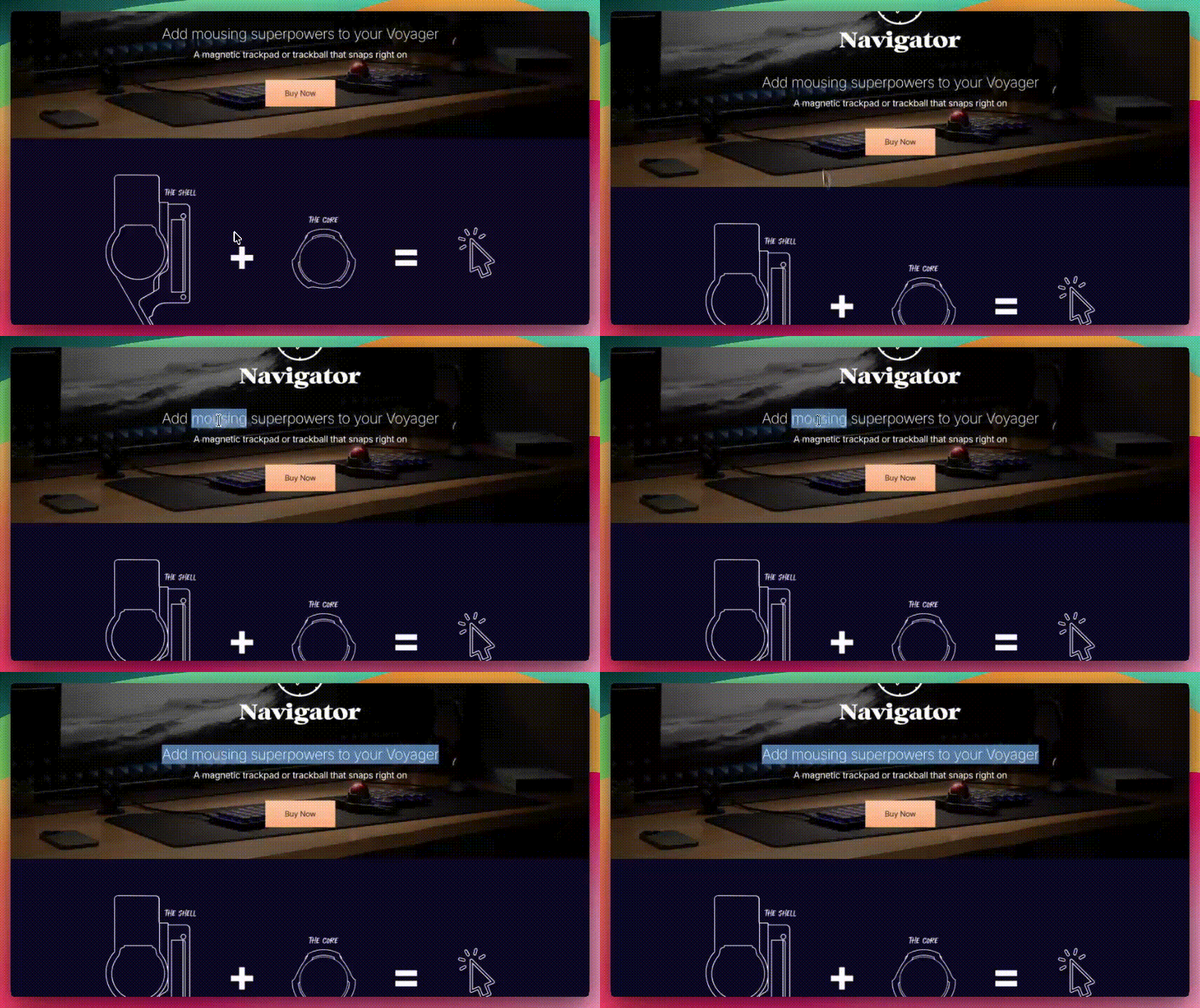
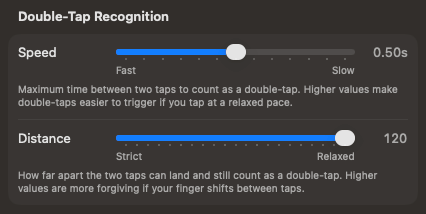
This always worked with the Navigator Trackpad, but now it’s more reliable. You can double-tap a word in text to select it, or triple-tap a word to select a whole block of text. There are also settings to adjust how this feels in the app.
Default speed and scrolling improvements with a multi-monitor fix
When the Trackpad arrived, we got some reports that the base speed was catapulting cursors across screens. Some people mentioned scrolling was unreliable, and others mentioned that the cursor was locked to just one screen. All of this has been fixed! We do a lot of internal testing, but this of course is no substitute for test results from thousands of different setups. Thank you for letting us know about these issues quickly and clearly!
If you’re still having trouble with any of this, first make sure your app is up to date (quitting and relaunching it doesn’t hurt either), and if that doesn’t help, just write us and we’ll dig deeper with you.
Why is macOS different? Why use a companion app at all?
Like we say in Oryx when you add a Navigator Trackpad to your layout, trackpads are unique among mousing devices: they don’t really have customizable firmware in the same way a lot of other mousing devices do. The behavior of trackpads (all trackpads, not just the Navigator Trackpad) is best handled by the drivers in the operating system. That’s how you get the smoothest and most compatible results — you just need hardware and firmware that allows for that. And for Windows and Linux, the Navigator Trackpad does this fantastically.
MacOS is different. Theoretically it’s the same system, except that Apple doesn’t let third-party trackpads use the really nice Apple trackpad drivers. You only get the basic mouse drivers. This means no gesture support and just a very limited experience in general.
This is how most keyboard trackpads on macOS are. They work at a basic level, but they are really, really not mouse replacements. They are only good for the most barebones of mousing tasks. This is not what we wanted our trackpad to be like. We wanted to do something basically unprecedented: we would make an actually good third-party trackpad for every OS, even macOS.
So we did. It took a long, long time. That’s why the Navigator Trackpad did not launch when the Navigator Trackball launched. There was a ton of hardware and firmware work to be done because we were not just using stock trackpads. But we got there.
The final piece of the puzzle is the macOS companion app. Because Apple does not just give third-party trackpads access to all the nice trackpad features natively, we had to find creative ways to make that work. Basically, every gesture we add is from scratch, using what little we can get from Apple and reverse engineering how it works and feels until we end up with something comparable. It is not easy, but it is worth doing to have a small trackpad that you can actually use. We can honestly say it’s the best small trackpad on the market based on what it can do. A bold claim, but one you can easily verify yourself.
So please do keep letting us know if you run into problems. Video examples are the most helpful. We’ve already been able to fix and add a ton of things (as you can see above) and we’re continuing to work on even more. What we’re doing with the Navigator Trackpad on macOS is exciting and hasn’t been done before. We’re grateful for the detailed reports we’ve gotten so far and all the positive feedback as we’ve improved things.
Let’s keep making the Navigator even better.