You probably know someone who just does not have an indoor voice. No matter where you are, if they have something to say, you're going to hear it. Up until now, that's kind of how Combos worked, too. With a ZSA keyboard, hitting two or more keys together can do something totally different. You can type punctuation by chording letter keys, accents by chording letters and numbers, whatever makes sense to you.
The one problem with Combos was that they looked at what the keys were sending. This meant that, if you had a Combo set to trigger when you hit l and ; together, for example, it would trigger across any layer, with no way to control that. So any time you hit these two keys, even if they were in different positions, the Combo would fire. You could have a nice little network of Combos that work great on one layer but get in the way on another one.
Now, Combos can look at the physical position of your keys, independently of what the keys are sending, and you can make them only look at specific layers.
This also means you can edit the keys that make up a Combo without getting rid of the Combo first, which is a huge quality of life win.
How layer-independent Combos work
In the Combo settings of Oryx, you'll see a new setting called Layer-independent Combos.
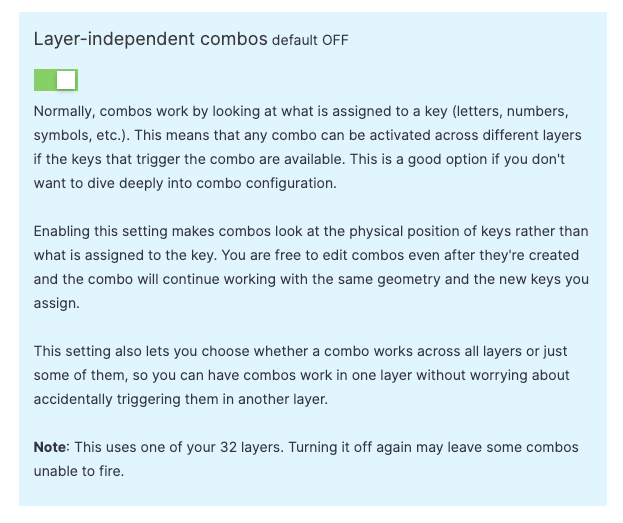
Note that if you already have Combos set up and you enable this setting, you'll need to go back through your Combos and adjust how they work. It may just be changing which layers they fire on, or you may need to do more extensive changes depending on your setup. This takes a minute, but it's worth it, especially if you have a number of Combos and want to add more. Layer-independent Combos give you more control and flexibility for Combo-heavy layouts.
When you turn this on, a few things change.
First, if you mouse over a Combo, you'll see it shows up regardless of layer. This is the most important change: when you set up a Combo, hitting those physical keys at the same time, no matter what layer you're in or what you're doing, will trigger the Combo.
There are some cases where you may want this. Let's say you have a Combo that locks your computer if you hit all your inner number keys at the same time.
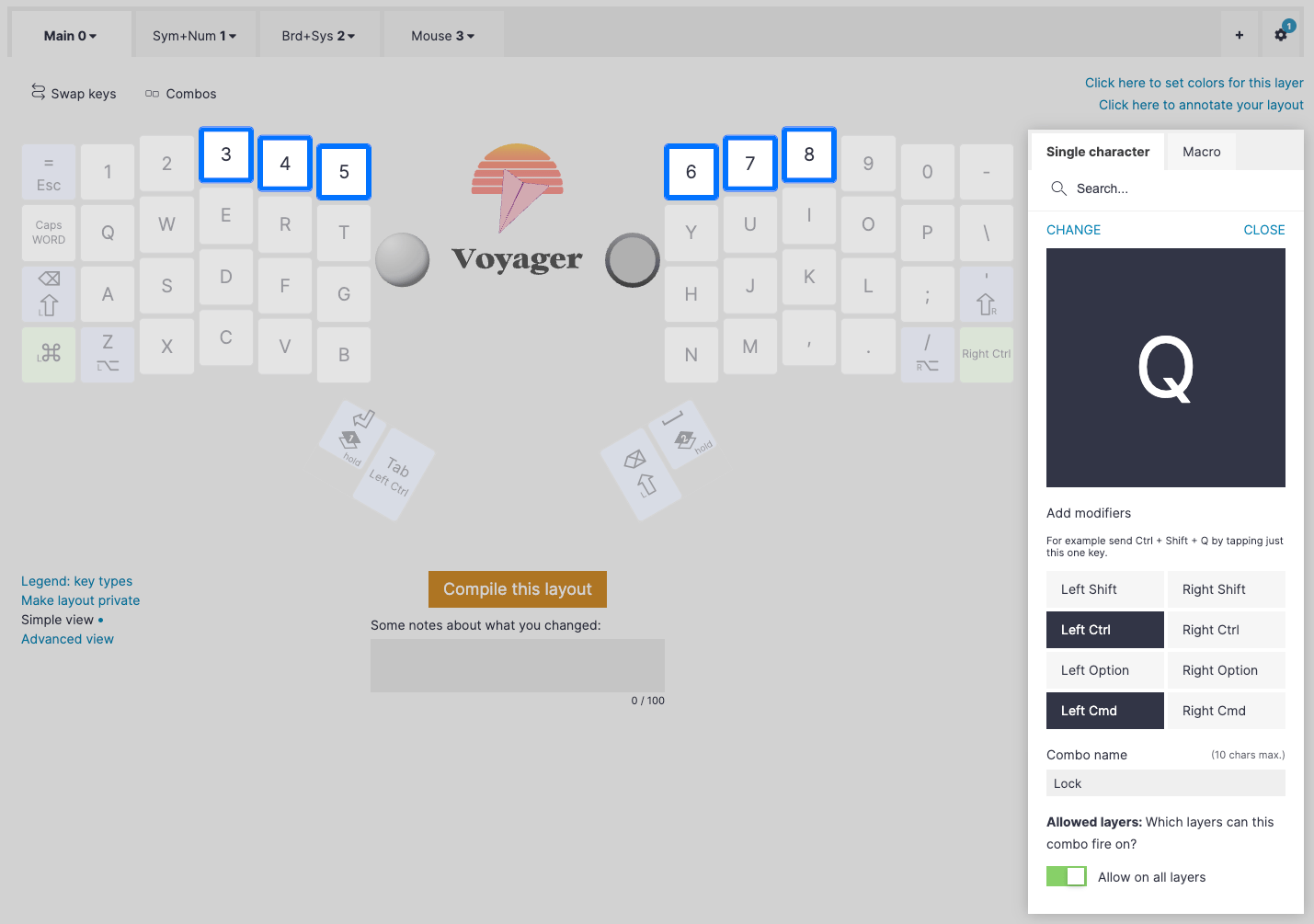
Odds are pretty good that it doesn't matter whether this Combo fires across all layers, and it may even be helpful. You can trigger lock no matter what you're doing.
The more likely scenario is you'll have Combos that you want to work on certain layers, but not others. That's where this new toggle in the Combo creation dialog comes in.
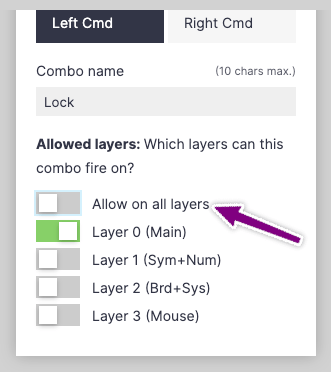
If you toggle this off, you'll see a list of all your layers, and only the current layer will be highlighted, so the Combo will only work on that layer. If you want it to work across more layers, you can pick and choose here.
For example, I have a couple of layers dedicated to gaming in my own layout. I might want to set up some Combos for day-to-day work that function across most of my layers, but I wouldn't want them to accidentally fire while I'm playing a game.
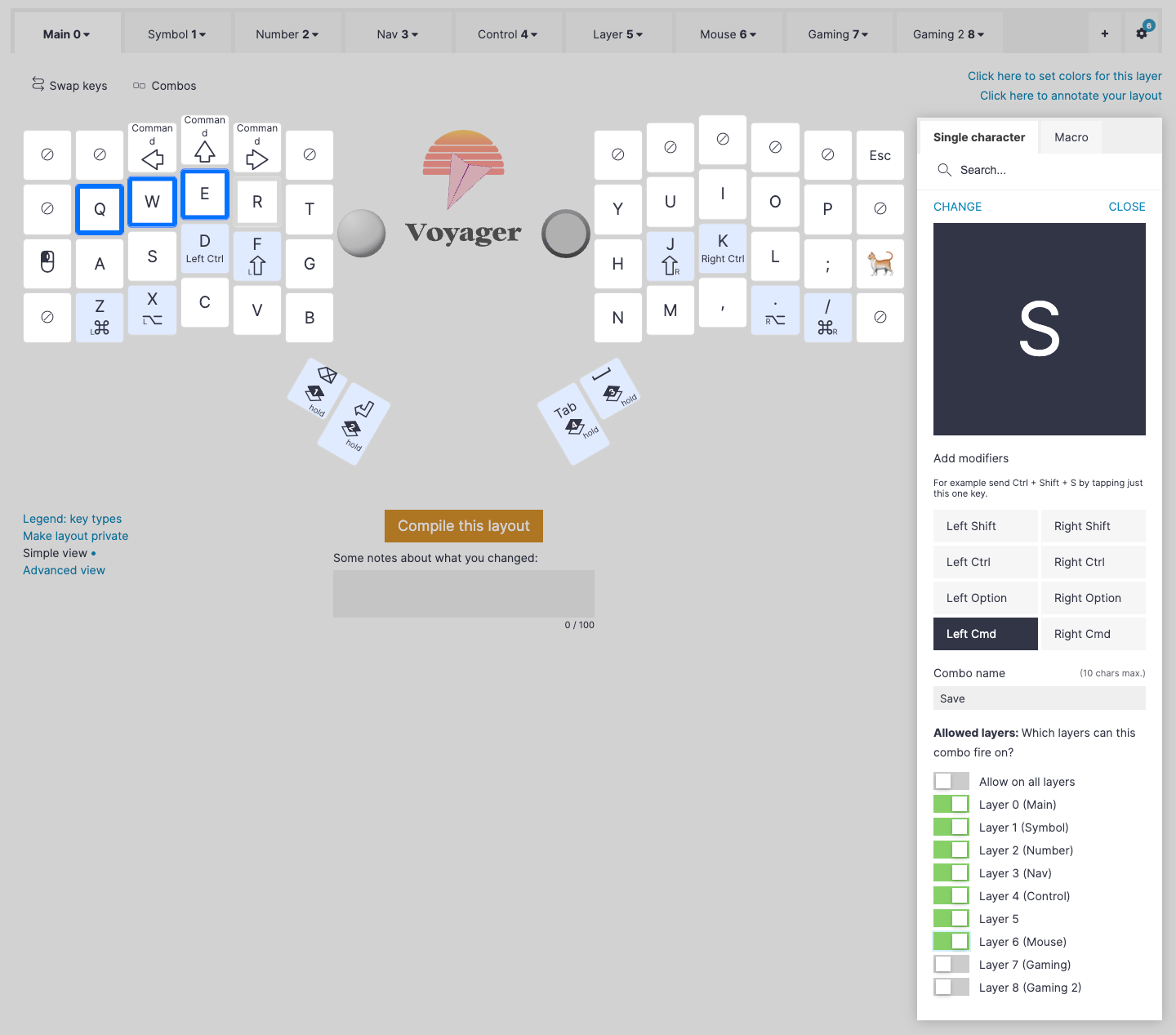
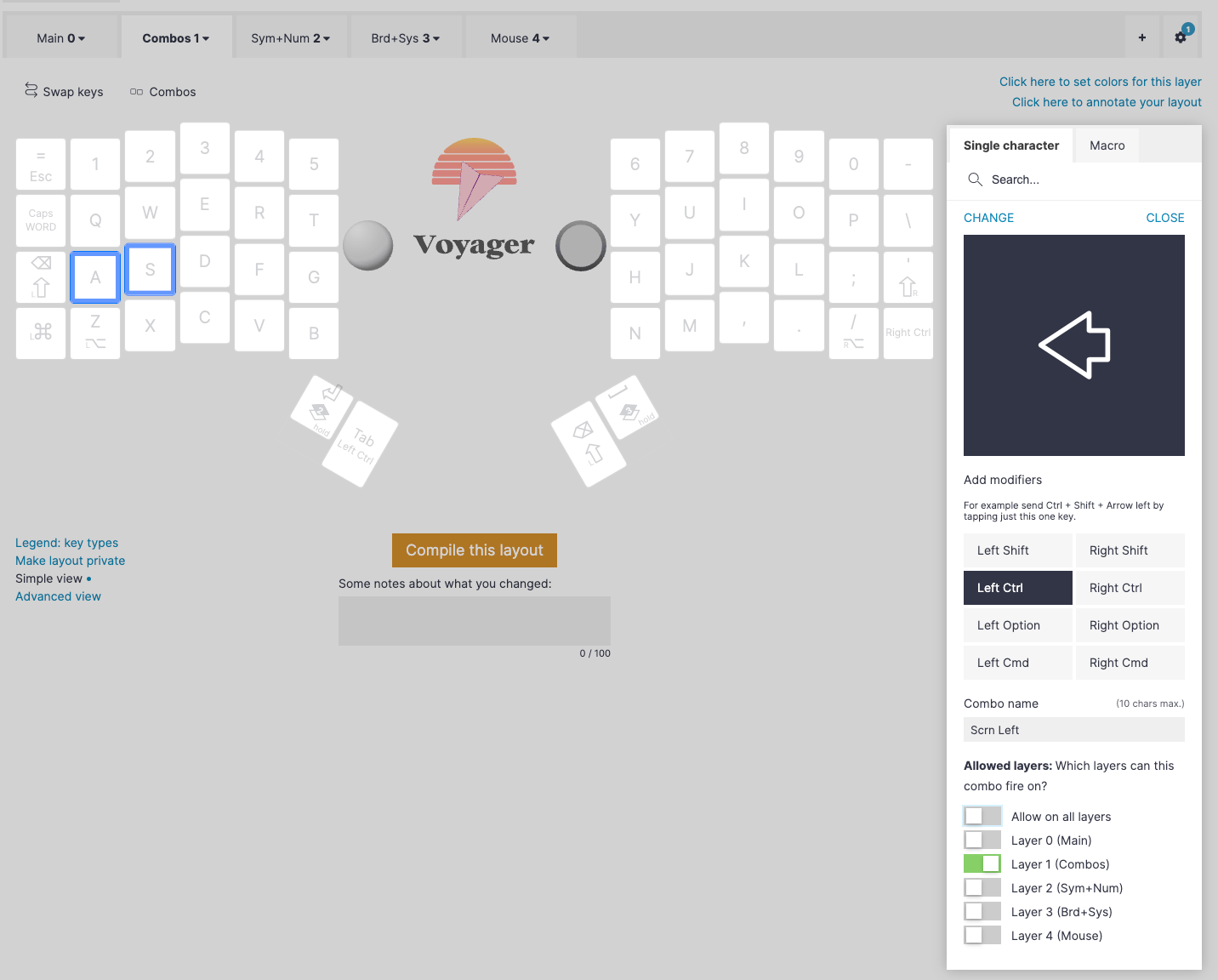
Or, another interesting application is setting up Combos that are comfortable to hit, even ones that would normally be too easy to trigger by accident. Comboing A and S is usually not a good idea because it's really easy to roll these keys while typing normally and accidentally trigger your Combo. However, if you then create a completely blank layer (and a way to enter it) and set your Combo to only fire on that layer, you have access to these comfortable Combos without interfering with your actual typing at all.
There are tons of ways to use Layer-independent Combos, but don't feel overwhelmed. You can get a lot of good, practical usage out of Combos with just a few straightforward ones. I talk about this extensively in my Layout Buffet post about Combos.
Combo away!