With thousands of Navigators out in the wild, the feature requests have been flowing in. We're fairly selective with new features, because Oryx needs to stay trim and svelte and not get too confusing.
That said, two feature requests made so much sense to us that we've gone ahead and implemented them. Both are available to use right now.
Double Click
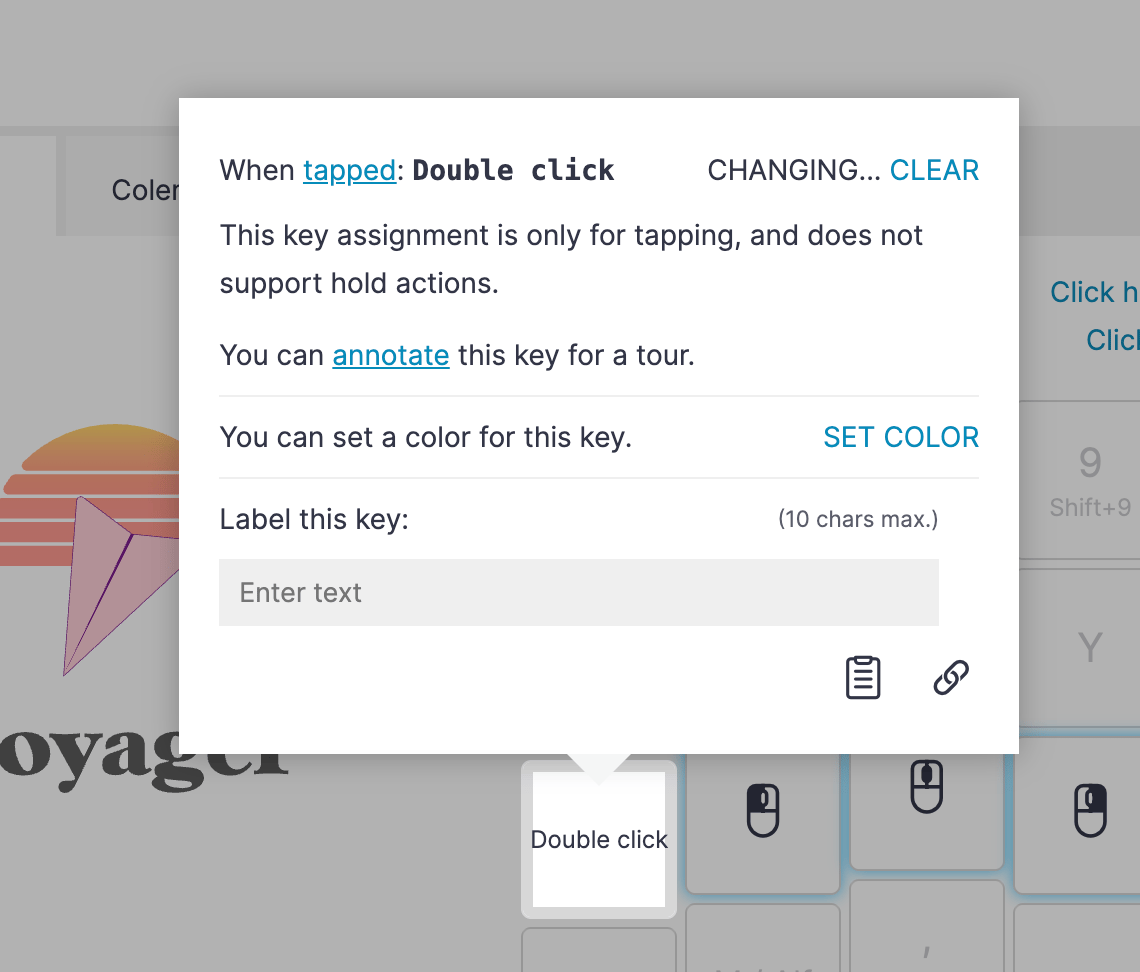
The double-click key double clicks. I'm not sure what else to tell you about it. Tap it once, and it'll click twice for you. It multiplies your kinetic energy and saves you an entire click.
We didn't make a bunch of fancy settings for it, you can't set the double-click interval and whatnot. That's because it just works, and there's something to be said for simplicity.
It works particularly well with the "Press to exit auto-mouse" setting for the Navigator. It counts as a single keypress, so you can move your cursor with the Navigator to a particular target, tap this key to instantly double-click, and then keep on typing up a storm, staying in the flow.
Mouse Jiggler
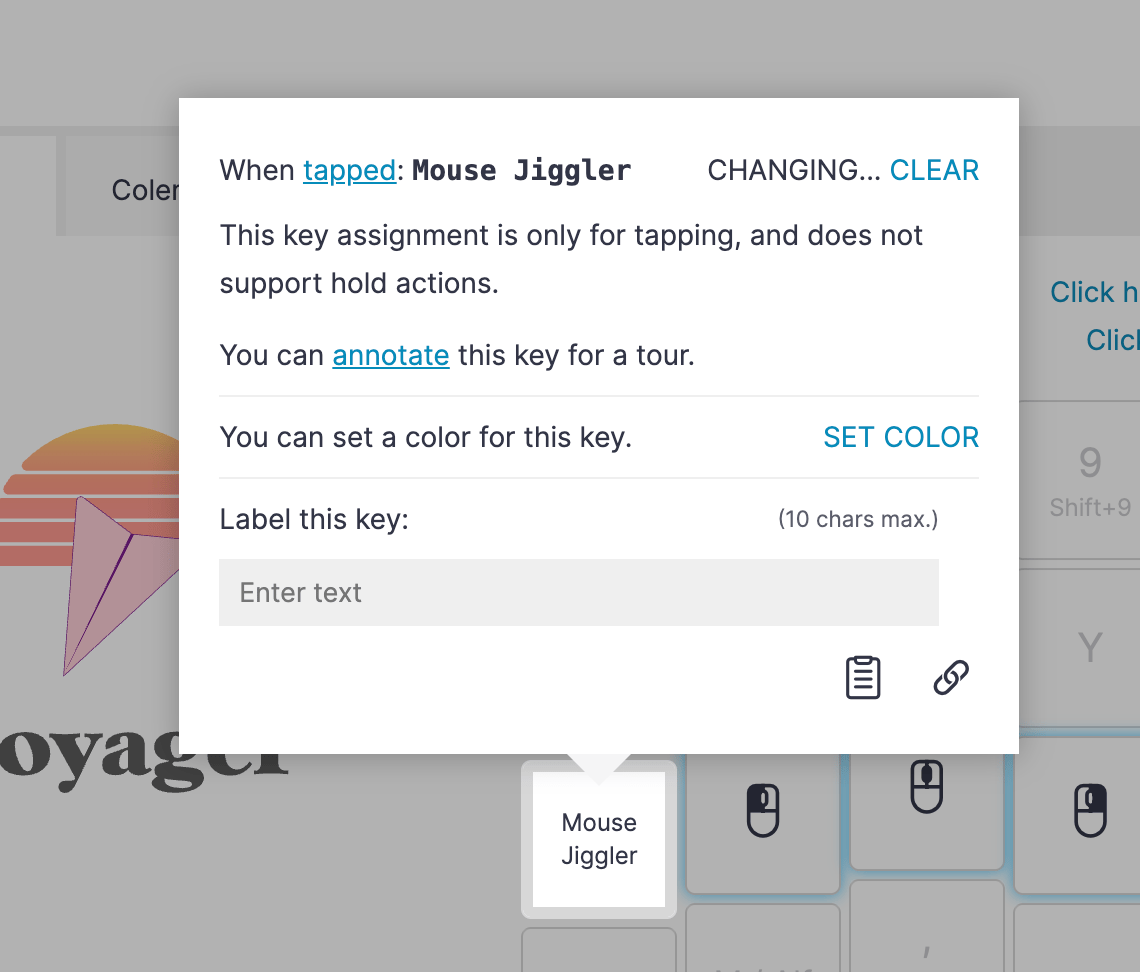
Sometimes I have a long-running task on my computer and I want to step away without it going to sleep on me. The usual solution for macOS is an app called Caffeine.
Mouse Jiggler lets you do this across any operating system, with no special software installed and without changing any system settings. When you tap the Mouse Jiggler key, it toggles the feature on. The keyboard then moves your mouse ever so slightly every second. If you watch carefully, you'll see it on your screen — a little to the right, a little to the left.
Since it's an input signal being sent, to the computer it's indistinguishable from a user actually rocking the mouse back and forth. So the computer will stay awake.
When Mouse Jiggler is on, one of the indicator LEDs will turn on as well (the exact LED depends on your keyboard model — this feature is available for all of our keyboards). When you turn it back off, the indicator LED will turn off.
Navigator not required
It's worth noting that while both of these features work well with a Navigator, neither one requires it. They'll work just fine with your ZSA keyboard as-is.
Open source
If you're curious to see how these features work under the hood and maybe adopt them for other keyboards, we've open-sourced both as QMK community modules. You can find both in our community modules GitHub repo — feel free to build on these, send in PRs, etc.
Enjoy!
Mouse support keeps getting better, and I'm so happy to read all of your feedback emails. Please keep them coming — tell us how you use these features and the Navigator itself, [email protected].