Layout Buffet is a series about the many things your keyboard can do. Each post explains an Oryx feature or layout idea and how you can try it a little at a time. Just like a buffet, how much you grab is up to you. If you try a bite and love it, you can come back for more. If it’s not for you, there are other options. Sample, experiment, and figure out what you like and what you don’t.
Every Layout Buffet post is typed using the concept covered in that post, so you know it’s not just theory.
Let’s dig in!
There’s a well-known saying that I often find applicable to my life (maybe that says something about me): “if all you have is a hammer, everything looks like a nail.” When you get your shiny new ZSA keyboard (or really any customizable board), the possibilities are exciting. You can move the keys around, make layers, make macros and shortcuts — you can do it all!
Then maybe you want a macro to create an email sign-off you’re using all the time, or a macro that automates a preview build. You might be able to create an onboard macro for these things, but is it the best tool for the job?
Keyboards send keystrokes. They can’t see what’s happening on your computer, so the automation you can pull off with a keyboard alone is pretty “blunt”. But, you can unlock some seriously powerful time-saving and comfort options by combining both firmware and software shortcuts.
Hyper and Meh
One of the best ways to enable powerful software shortcuts is using the Hyper and Meh keys.
Hyper is a combination of all the usual modifiers, Shift, Ctrl, Alt, and “Meta” (the Windows key on Windows or Command on macOS). Meh is the same, just a little less “hyper”, so just Shift, Ctrl, and Alt. And to be clear, there is no difference between hitting Hyper or Meh vs. hitting all these modifiers manually at the same time or creating your own keys that are a combination of these modifiers — the dedicated keys are just for convenience.
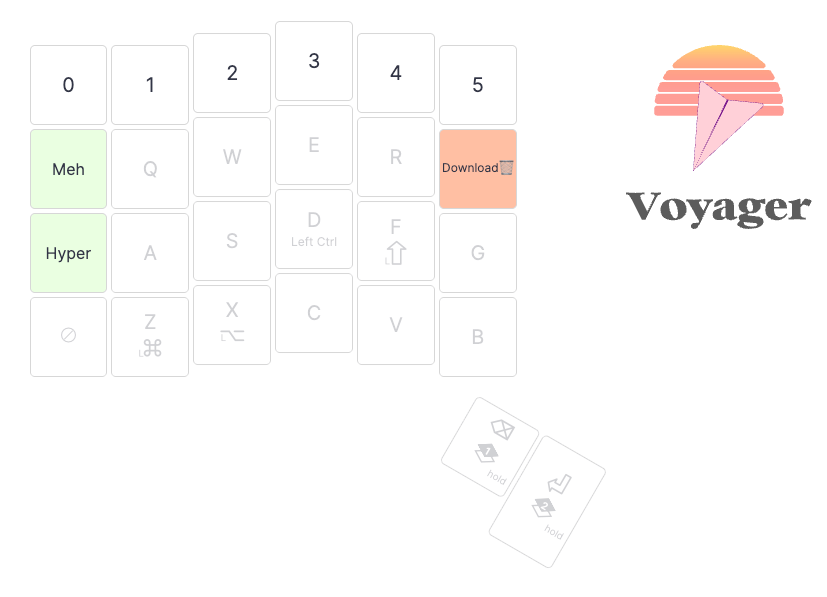
Hyper and Meh are powerful because they are not likely to conflict with existing shortcuts. Any key + a single modifier is usually already assigned to something, either in your specific app or in your operating system. Even two modifiers + a key is often already taken. But once you get into three or four modifiers and a key, there are far fewer pre-established shortcuts. With software, I could make Hyper + A minimize all my apps, for example, or Meh + L open a specific folder, whatever would help my workflow.
A software + firmware text shortcut
On macOS I like using Alfred, a sort-of all-in-one utility that handles a bunch of handy things for me like clipboard history, text snippets, and some light automation. It’s been around forever and is pretty expansible. There are other, similar apps (Raycast, Monarch, Cerebro, PowerToys on Windows, etc.) that I’m sure are good, but I more-or-less “get” Alfred and it doesn’t really leave me wanting for anything.
So, here’s an example I actually use almost every day. When answering support emails, I send a lot of links to courier tracking pages. We like to both have the tracking number written out, for easy reference, and also link right to the tracking page, to see the status easily. To do this, I end up needing to make a bunch of hyperlinks.
The way I used to this was:
- Paste the number into an email
- Paste the number into the courier’s specific search
- Get the link for the tracking page
- Go back to the email and create the hyperlink
This worked, but I found it tedious, so I started to wonder if there was a better way. I realized all our couriers have a consistent URL scheme where I could just insert the tracking number to generate the correct link, so I created a script that I feed the tracking number (through Alfred), and it spits out the link with that number inserted.
Since I use this a lot, I set it up Hyper + 1 to trigger it.
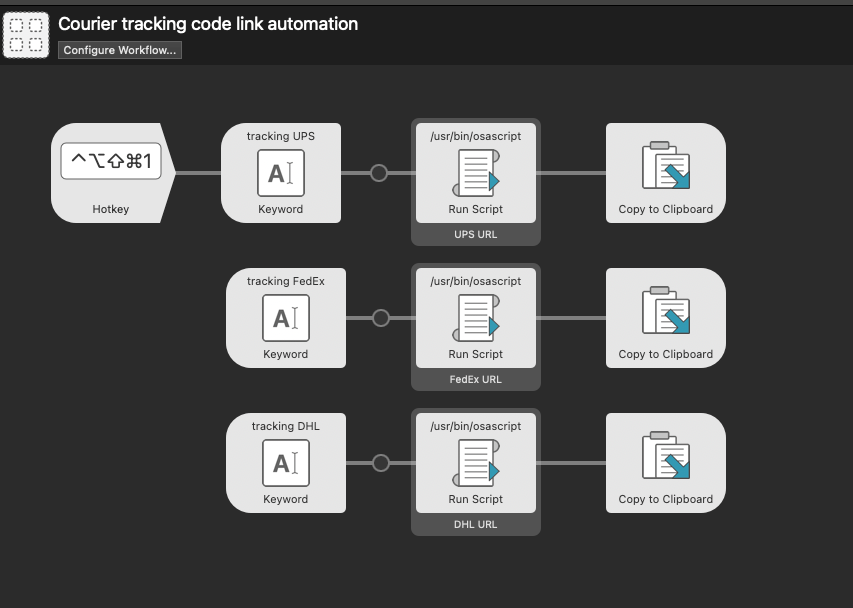
This is also a simple of example of the keyboard working with a software automation. I use my configured Hyper + 1 key to trigger it, then a dedicated Ctrl + V key to proceed with the automation. Building in steps to your complicated automations that ask you for input helps avoid disaster. Automation requires feedback, except when it is very basic.
A filesystem automation
Here’s another example right from the Alfred docs of something I’ve been meaning to set up. I download a lot of files I need to see once or twice, then I don’t need anymore. My Downloads folder is a mess. It would be great to to have an easy way to delete the latest downloaded file from any context without having to open my files and click around. In Alfred, I set up these two actions. The first gets the most recent file from my Downloads folder, and the second sends it to the trash.
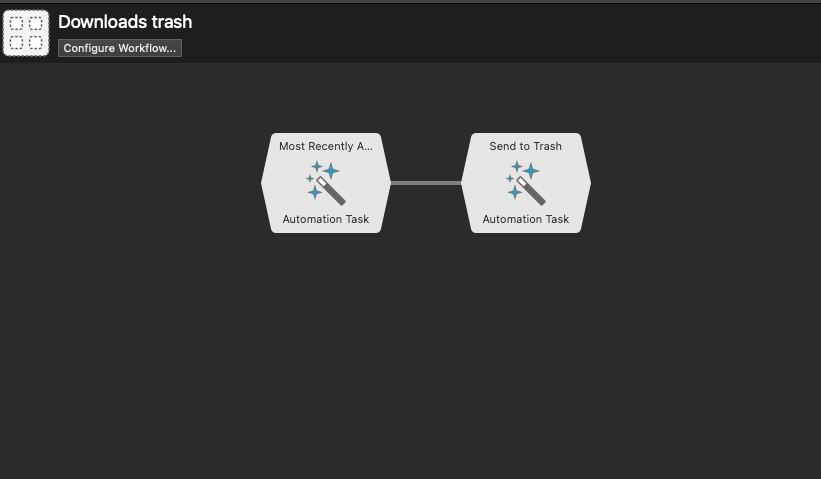
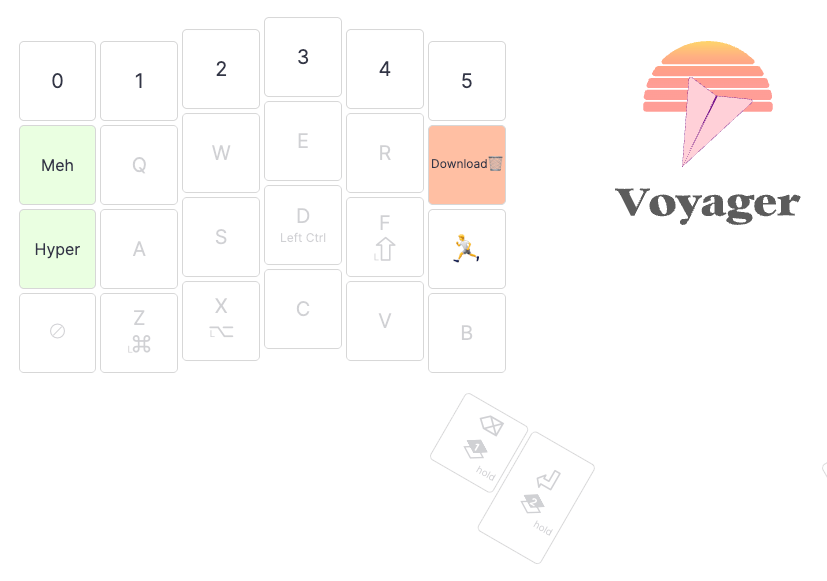
Then, I need a way to trigger it. I’ll do this with Hyper + T.
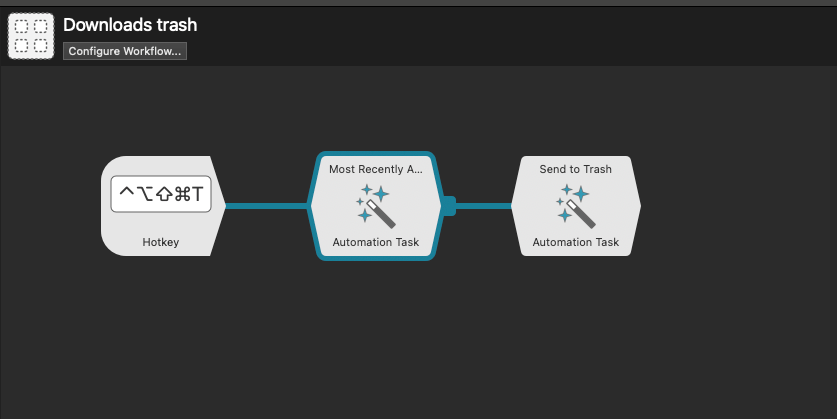
And just like that, it’s working perfectly. I can delete my most-recent download from anywhere.
An aside on AI and stakes
If you are not much of a scripter, AI can write scripts for you, but should you let it?
The main thing I would consider is what’s at stake if an automation goes wrong. I made a version of my courier URL automation that was sort-of working, but not quite how I wanted. I used ChatGPT to make a better version because I wasn’t very worried about what could go wrong. I understand enough AppleScript syntax to make sure it’s not going to kill my computer, and it’s an additive automation; I’m just pasting a modified URL. The worst case is it just doesn’t work.
If I had to use a script for this downloads deletion automation, I would be a lot more careful about what an AI-generated script is doing. It’s simple enough that I suspect it would still be fine, but as soon as you get into any destructive task, something that deletes or overwrites, you have to be confident that you’re not going to lose anything important.
Basically, AI can help, but be responsible about it. Scripts and automation can do real damage to your work (and even your hardware in rare cases) with or without AI, but if you trust what AI spits out without verifying it, the risk goes way up.
Tasks that don’t (necessarily) need shortcuts
You can automate lots of things without dedicated hotkeys for them.
One of my most-used features of Alfred is Snippets, pre-made bits of text that are always saved and I can call up to paste at any time. Another great, open-source alternative for this is Espanso. Espanso’s main focus is text expansion, which works similarly, but you can also use it for snippets.
I have tons and tons of snippets. Many of them are links I need to send from time to time, and it’s easier to have them saved than to go and search for them each time. I could make an intricate layer in my layout with a dedicated key for tons of my common snippets, but I don’t do that. When setting up shortcuts, you have to consider what it will be like to use them. A single key triggering a snippet sounds like it could be cool initially, but there are some problems with it.
For one thing, I would be motivated to have no more than 51 snippets (filling every key of a 52-key keyboard aside from a layer-switching key), but I don’t want to be limited to 51 snippets.
It would also be a bit of a nightmare to memorize a layer like that. Some snippets only come up once every couple of months, but I’m still glad I have them. Remembering which key to hit for a snippet I rarely use is hard.
Finally, and maybe most importantly, does a layout like that truly make my life that much easier? What I actually do with my snippets is call up a box to search for them. Typing just a few characters narrows down the list to a few entries, and I can continue typing or use arrow keys to select the one I want. That is more keystrokes, for sure, but I type pretty quickly and am very used to this sequence. The time savings of hitting just a single key aren’t that compelling, especially again when you factor in how long it would take to memorize all the keys.
That is not to say you couldn’t take a more moderate approach. If I had a handful of snippets I used constantly, maybe I’d set up keys for those and search for the less-used snippets when they come up.
My point here is it’s tempting to think about shortcuts and how you can set up a layer that solves “everything” — the perfect layer. Practically, that’s just not going to exist for most workflows. Think about how to make the biggest parts of your day-to-day easier. Spending a bunch of time optimizing for the 1% or less is not a good use of time.
That goes for automating tasks at all, too. If you’re thinking about automating something you only do once a month, is an automation worth it? That’s your call, but it’s easy to get trapped into spending more time on the automation than it would take to do the task. Remember the hammer and nail saying?
Your own examples
Do you use a combination of keyboard firmware and software for helpful automations? Feel free to share them with us at [email protected]. Maybe I can add even more community examples.
Happy automating!