Layout Buffet is a series about the many things your keyboard can do. Each post explains an Oryx feature or layout idea and how you can try it a little at a time. Just like a buffet, how much you grab is up to you. If you try a bite and love it, you can come back for more. If it’s not for you, there are other options. Sample, experiment, and figure out what you like and what you don’t.
Every Layout Buffet post is typed using the concept covered in that post, so you know it’s not just theory.
Let’s dig in!
The concept of Combos is simple: hit some number of keys all at once to do something. Yet, amidst all the Oryx features, creating combos can be surprisingly daunting. There are so many options. What keys should trigger it? What things should they trigger? What things work best as combos? It’s easy to get stuck in decision paralysis. In this article, I'll explore some practical ways to give combos a try on a small scale.
Who are Combos for?
You might see the title and think, "Robin, I already had to get used to layers and multi-function keys and all sorts of things. Don't tell me there's another thing!"
I know, but stay with me for a second. Remember you don't have to use Combos. You're not really losing out on anything if you never touch this feature. Combos are just another option that may feel super intuitive to some and make no sense to others — they're something you can experiment with.
Second, we can implement combos a little at a time. You don't have to have dozens and dozens of combos for every single case. Try a couple, see what you think, and add more if you like them.
Setting up Combos
If you’ve looked up Combos before, you may have seen some intense setups like the Kombol layout:
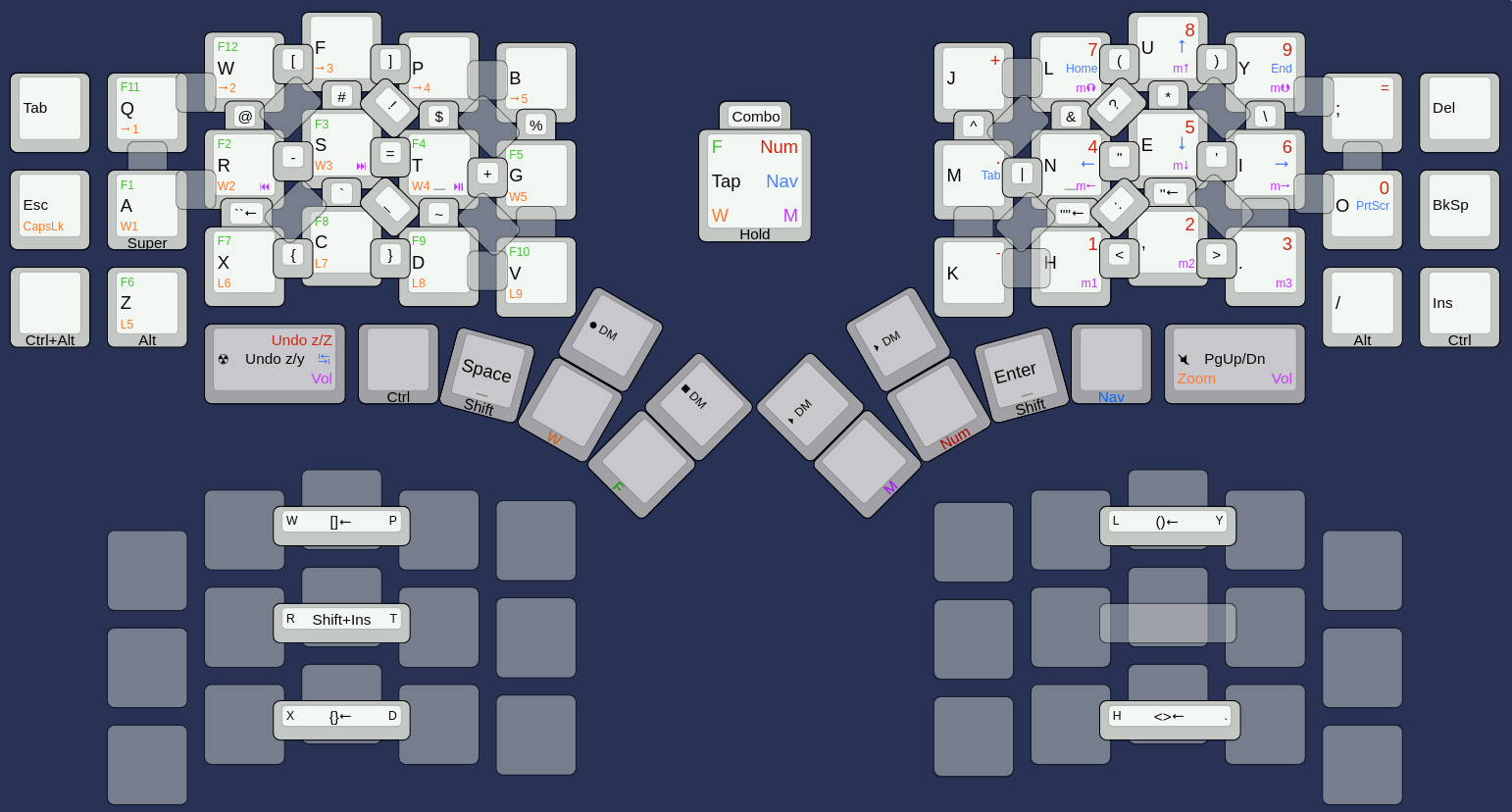
Stuff like the Kombol layout is cool — but that isn’t the goal here. You can do a lot with Combos, but you don’t have to. A sprinkling of Combos is a better idea for the majority of people.
Combos that mimic traditional keyboard layouts
What if instead, we added just three combos that are intuitive if you're coming from a traditional keyboard?
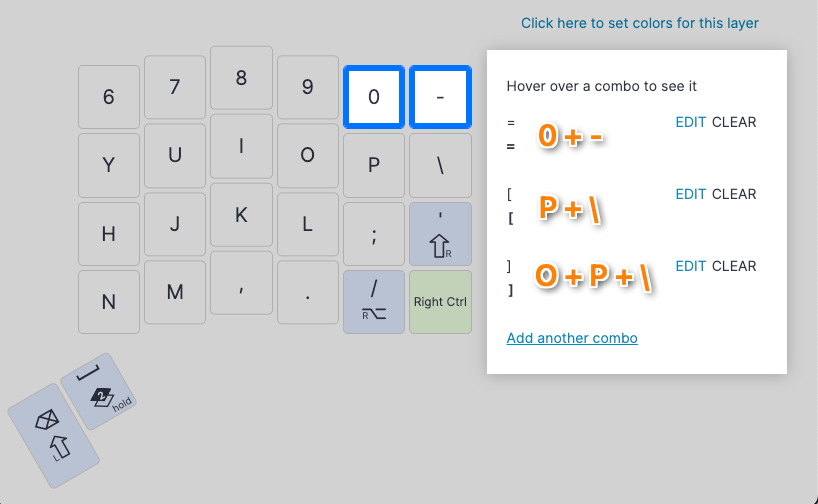
By default, ZSA boards don't have as many keys as traditional layouts, which is by design — you don't have to reach as far for all the keys. But that begs the question, where do those extra keys go?
Layers and multi-function keys are the default options, but Combos are another, less-explored option (more on the layer comparison below). In the above example, rather than having the upper right cluster of physical keys on traditional keyboards, we can make hitting multiple keys at once send those characters instead. Making a combo is easy:

Once that’s set up, instead of a physical key for "=", we hit 0 and - (keys that would normally be right near "=") together. And, instead of physical keys for "[" and "]", we hit P and \ together, or O, P, and \ together. The closed brackets can use three keys because lots of software takes care of the closing bracket for you automatically, so you won't need to use this Combo as much. If you don't use software that does that, you may want to consider a different two-key combo.
The other important aspect of these combos is they use keys that are not likely to be hit together during normal typing. There are few scenarios where I would roll from 0 to - quickly, or P to \, so it makes these combos reliable to hit when I want to and not prone to triggering accidentally. Assigning a combo to something like A and S would not work very well because "as" is a common word that we can type very quickly, so the combo would trigger when we don't mean to.
The three main methods for making combos less prone to accidental activation are:
- Use keys that you wouldn't hit together normally. Combinations of symbols and letters or numbers are often good choices, but you can also look up infrequent ngrams if you want a letter-based combo. The worst keys to chose are common ngrams that you can easily roll with one hand, like "as", "ed", "we", etc.
- Use more keys in a Combo. The more keys a combo has, the less likely you'll hit all of them quickly enough to trigger the combo accidentally. Of course, the tradeoff here is bigger combos are harder to hit quickly.
- Adjusting your Combo Term. If you find you're triggering combos when you don't mean to, you'll want to try a shorter combo term. This is the window of time you have to press the two keys down together. Note that it might sound like you can get away with a very short term here, but you do need at least 20ms or so to get any kind of reliable combo activation.
Easy-to-reach combos
The above example is probably what's going to make the most sense to the most people, but as you start to get a little more familiar with your keyboard, you can take Combos a little farther. Like Home-row Mods, we can focus on combos that are convenient to reach rather than familiar.
For example, let's say I want to access all types of brackets. A convenient place for these would be right near my home row, especially if I'm a programmer who needs these regularly. We can echo the previous example and put the open brackets on R+T, F+G, and V+B.

This setup looks good, but there are some things we'll need to keep in mind. FG and VB are quite uncommon bigrams in English, so these are probably fine to use, but RT is a common enough bigram that it could cause problems as a Combo. My suggestion with any combo setup is to try it before diving into fixes. You may find it doesn't really come up enough to be a problem, or the way you type doesn't cause accidental activations. If you do run into trouble, you can try one of the above fixes to dial in what feels good.
It's also important to note here (again like Home-row mods) that more optimized layouts than QWERTY like Colemak and Dvorak may actually get less utility from this approach. If the most common characters you need to hit are already on your home row, then loading it with even more stuff might be frustrating. It's still worth experimenting with, but just be aware of that if you use an alternate layout.
Even more combos
If you try this and like the idea, you can go further with it. Here’s what I was trying while typing this article.
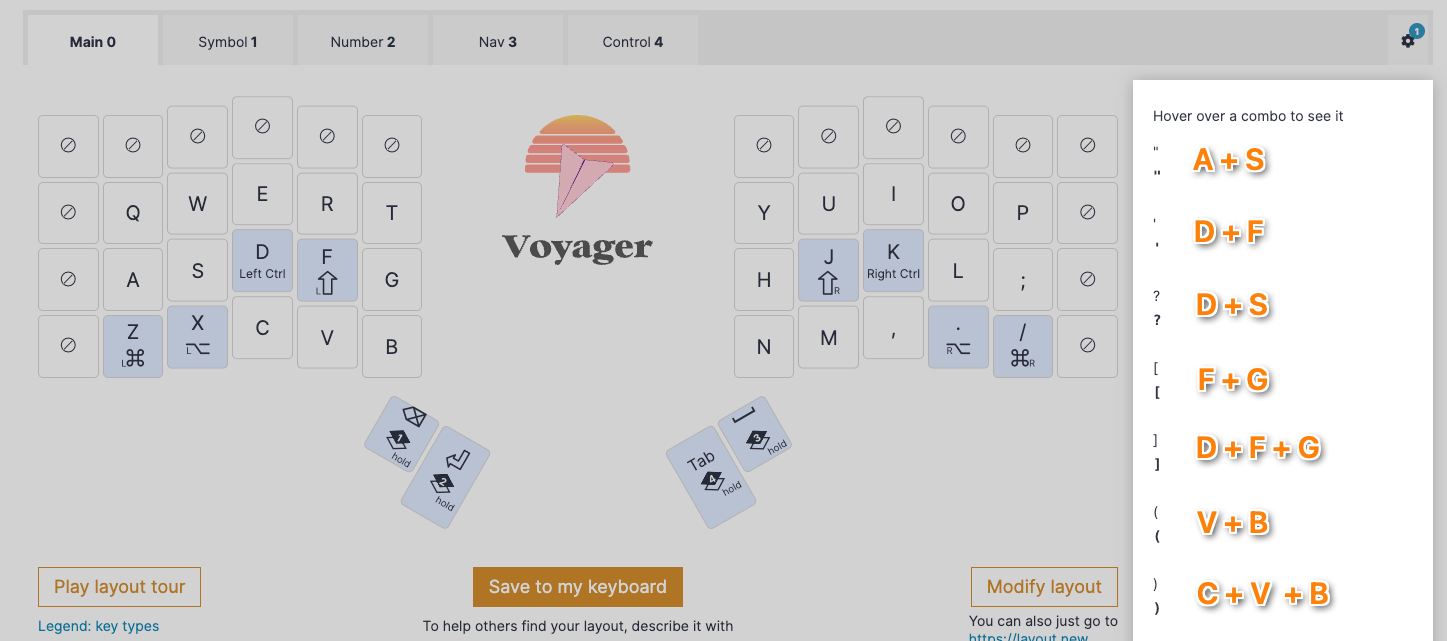
This is not my ideal combo setup. For example, I knew A+S triggering “ would probably not work well, but I thought I’d give it a try anyway. Spoiler: it does not work — it leads to a lot of annoying accidental activations. But, this was a great test. I ran into problems with this combo a few times over the course of around 1000 words, so I know it’s something I need to change. My next step would be trying a three-key combo instead. This is how you can iterate, too.
Layers vs. Combos
If you've gotten to this point and are thinking the functionality of Combos has a lot of overlap with layers, you're right! They fill essentially the same niche: make fewer physical keys do more things, so you don't have to reach.
The reason I tend to prefer layers is they are conceptually a little more intuitive than Combos — easier to reason about. A layer is basically a custom built-in modifier like Shift. You set the layer-switching key and decide what the keys should do when you switch. This is a pattern we're all already quite used to.
A Combo is more like a custom shortcut, like Ctrl + V, but as a general rule, we're not as used to shortcuts entering characters. Shortcuts usually "do things", like copy/paste, opening a new tab, selecting all, etc. If you're used to entering uncommon symbols like "√" or if your input locale uses a “dead key” for entering accented characters, you may be more used to this idea, but few people need those symbols day to day. Windows also uses a somewhat combo-like action to switch locales (Alt+Shift). All these shortcuts don't require you to hit the keys at the exact same time, though. In fact, most people have the opposite muscle memory: holding the modifier for a split second then hitting the key.
So, Combos may feel a little harder to adjust to, but that doesn't mean they're not potentially useful. Just be aware it may take some time and experimentation, like any other advanced keyboard feature. You also don't have to choose only layers or only combos. You may want to use combos for brackets because you enter those a lot, while using a layer for other symbols because you don't enter them as much, or vice versa.
Happy comboing!